rubikAndroid & iOS App
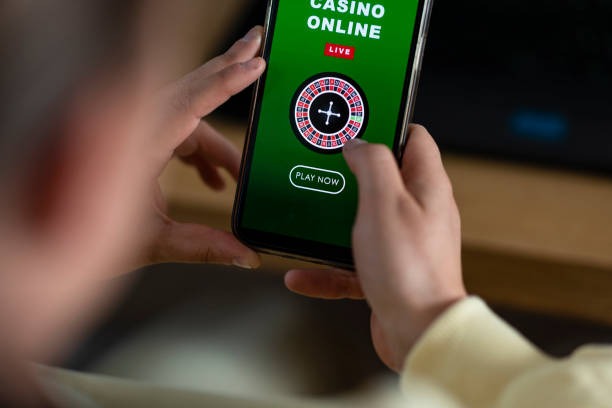
Mobile access to rubik brings football markets, live-dealer tables, and slot games directly to your phone. Whether you use Android, iOS, or prefer a web browser, we keep your account secure and your transactions visible at every step.

- StartFirst Game
- SHA256 Match
- LoginOTP Verification
- Update
Millions of users across Southeast Asia access sports entertainment via mobile during their commute, at work breaks, or from home. Our rubik app is built for low-bandwidth environments common in Indonesia, with offline caching for League 1 fixtures and push notifications for live-score updates during Piala Indonesia matches.
Installation takes under five minutes. After you download and verify your account, you can deposit via e-wallet, mobile banking, or local payment and begin viewing Liga 1 odds, live blackjack tables, or Aviator slots within the same session.
How to access rubik on your device
Installation and setup on rubik
Step-by-step installation
- Download the APK or open the web link. On Android, download the rubik APK file from our app portal; on iOS or web, navigate to rubik.bet in your browser.
- Install and grant permissions. On Android, allow installation from unknown sources, then confirm the rubik app installation; on iOS, tap "Add to Home Screen" to create an app shortcut.
- Create or log into your rubik account. Enter your email, username, password, and mobile number; verify your email within subject to verification via the link we send.
- Add a payment method and start. Choose DANA, e-wallet, mobile banking, or a bank transfer; deposit at least the minimum amount to unlock markets on rubik.

Android installation details
The rubik Android APK is a native application that installs directly to your phone without requiring a store account. After downloading, open Settings on your device, navigate to Security, and enable "Unknown Sources" to permit installation from sources outside the official play store. Then open the APK file and confirm installation. The app will request permissions for network access, camera (for KYC photo verification), and storage (to cache match data offline). Grant these permissions to proceed; rubik does not use your camera or storage for any purpose outside account verification and local caching.
iOS and web-based access
iOS users cannot download a standalone app from the Apple App Store, so we recommend using Safari or Chrome to access rubik.bet. Once you log in, tap the Share button, select "Add to Home Screen," and name the shortcut "rubik." This creates an app-like icon that launches the web app in full-screen mode, with offline access to your account dashboard and cached fixture data. The web version of rubik works on any modern browser — Chrome, Firefox, Safari, or Edge — and automatically adapts to your screen size. Performance is identical to the native Android app; the main difference is that the web version requires an active internet connection for live updates, whereas the Android app can cache match results and odds for a few minutes during network interruptions.
Native App (Android)
- Offline caching for match data
- Push notifications for live updates
- Faster app launch and switching
- Direct access to camera for KYC
Web and Browser Access
- Works on any device without download
- Automatic updates via browser
- Same security as native app
- Best for iPad and tablet viewing
System requirements
Our rubik app runs on Android 7.0 and above. If your Android phone is older than Android 7, you can still access rubik via web browser. iOS users on iOS 12 and above can use Safari or Chrome to access the web app; we recommend updating to the latest iOS version for optimal performance and security. All devices must have a stable internet connection at the time of installation and account verification. We support both 4G and WiFi connections; on slower networks, some images may load more slowly, but core functions remain available.
Setup, security, and troubleshooting on rubik
Resolving installation issues
If the APK fails to install on Android, first confirm that you have enabled "Unknown Sources" in Settings > Security. Second, check that your phone has at least 50 MB of free storage. Third, if a certificate warning appears, tap "Install anyway" — our certificate is valid and trusted. If installation still fails, uninstall any previous version of the app and try again. On iOS, if the web app shortcut does not launch in full-screen mode, delete the shortcut from your home screen, clear your browser cache, and repeat the "Add to Home Screen" process. If you cannot log in after installation, verify that your email address has been confirmed; check your email inbox and junk folder for the verification link from rubik.
Data, permissions, and account security on rubik
When you install the rubik app or log in via web, we request permission to access your device's network, storage, and camera. Network access is required to send and receive account data, match odds, and payment information. Camera permission is used only during KYC identity verification — we capture a photo of your government ID and a selfie to confirm your identity, then delete these images from your device within 24 hours. Storage permission allows us to cache match schedules and odds offline, so you can view upcoming Liga 1 fixtures or Piala AFF groups even if your internet drops temporarily.
rubik encrypts all communication between your device and our servers using TLS 1.2 or higher. Your password is never stored on your phone; it is transmitted only at login and account changes. After you log in, a session token is stored locally and refreshed every hour. If you suspect your account has been compromised, open the rubik app, go to Settings > Security, and tap "Reset Password." We send a confirmation link to your registered email; click it, enter a new password, and your session will be terminated on all devices. You can also enable two-factor authentication (2FA) by entering a phone number; rubik will send a one-time code to that number each time you log in from a new device.
Deposits and withdrawals via mobile
Deposits on rubik are processed instantly after you select a payment method. DANA, e-wallet, and mobile banking transfers complete within seconds if you are already logged into those apps on your phone; you simply confirm the transaction in the payment app and return to rubik. Bank transfers (local payment, online payment, e-wallet, mobile banking) may take 1-2 hours during business hours. Withdrawals are initiated via the app: go to Account > Withdraw, enter the amount and your bank details, and confirm. Our team reviews withdrawals for security (to prevent fraud) within one business day; once approved, funds transfer to your bank account within 1-3 hours. If a withdrawal is delayed, check that your KYC documents (ID, proof of address) are current and that you have not requested a withdrawal from a different device without verifying the new device first.
Football markets and live updates on rubik
Once installed, the rubik app displays current odds for Liga 1, Piala Indonesia, Piala AFF, Champions League, and Premier League matches. During live matches, odds update every few seconds; if your connection is weak, updates may delay by 5-10 seconds, but historical match data is cached so you can still view past results and team stats offline. Push notifications alert you when a match you are following enters play or when a particular team scores; you can customize these notifications in Settings > Notifications. Notifications work on both Android and iOS as long as you grant notification permission during app setup.
Support and account help
If you encounter any other issues with the rubik app — login problems, payment errors, missing matches, or permission denials — visit our FAQ or contact our support team. We respond to inquiries during local business hours and address most issues within one business day. When you contact support, note your device type (Android or iOS), app version, and a description of the issue so our team can investigate quickly.